iTech Canteen is the campus dining app for PSG iTech. It lets you browse the day's menu, pay from a digital
wallet or online, order together with friends, collect your food with a barcode, and keep track of everything
you've spent — all from your phone or computer.
You can open it in a web browser or install it to your home screen like a normal app. This guide walks through
every feature available to you as a student or staff user.
Tip — You never need to carry cash. Top up your wallet once and pay for orders
in a couple of taps — or pay online with UPI/cards at checkout.
What you can do at a glance
Order food from menus that change through the day (breakfast, lunch, snacks, etc.).
Pay your way — digital wallet, online (UPI/cards/net-banking), or a split of both.
Order as a group and let one person pay the whole bill.
Collect food by showing your personal barcode at the counter.
Track orders live, download bills, and reorder favourites.
Suggest new items on the Idea Board and vote for others' ideas.
See your habits with Canteen Wrapped, your personal year in review.
iTech Canteen
User Guide · v1.0
Section 02
Creating an account & signing in
Register, sign in, verify your email
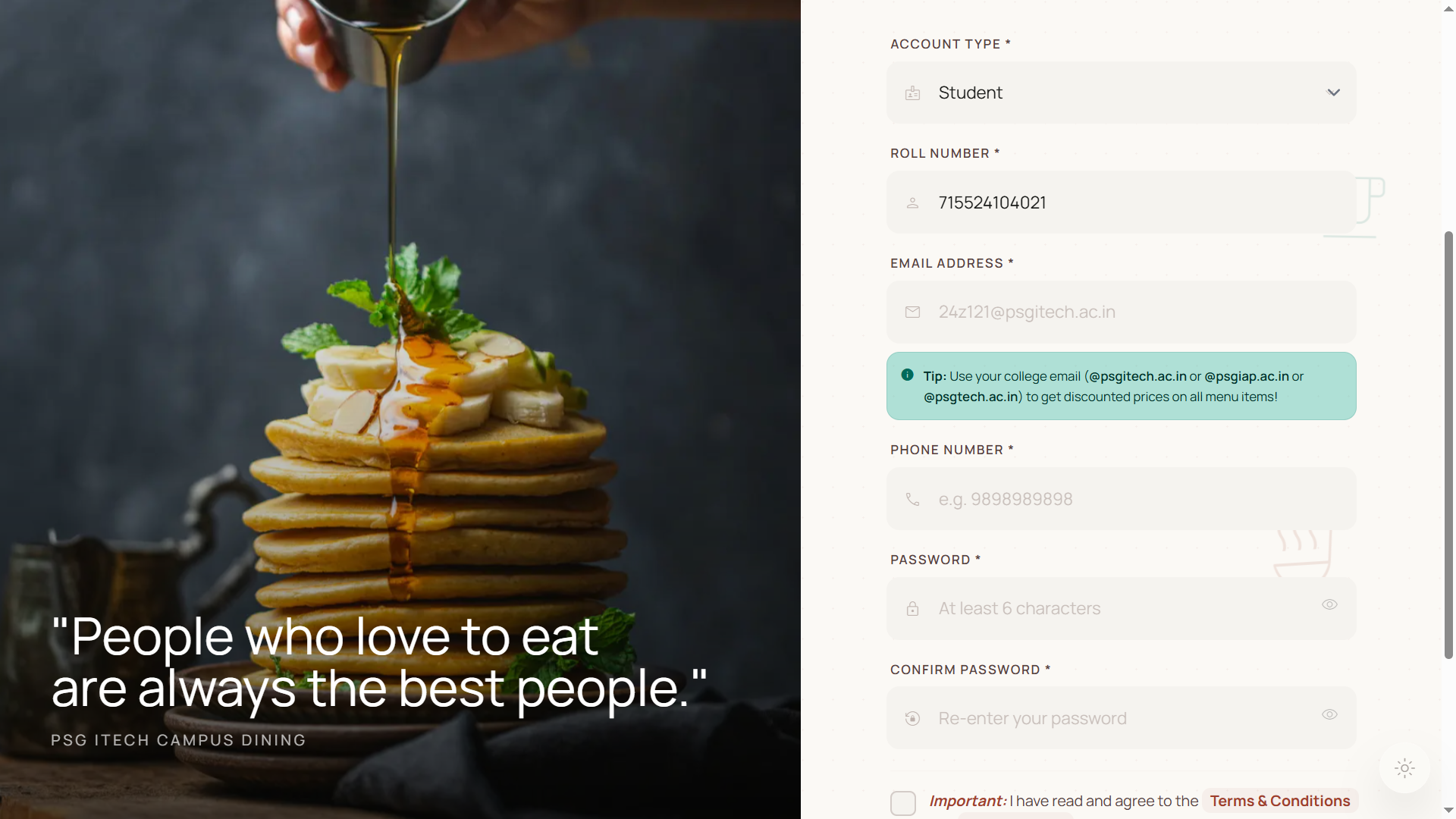
Register a new account
1Open the app and choose Register from the sign-in screen.
2Enter your details — name, roll number, phone number, email, and a password.
3Submit the form. Your account is created and you can sign in immediately.
The registration form.
Note — Students and staff register with their roll number; external/guest users
register with their email. Your identifier is used later for wallet top-ups and your collection barcode.
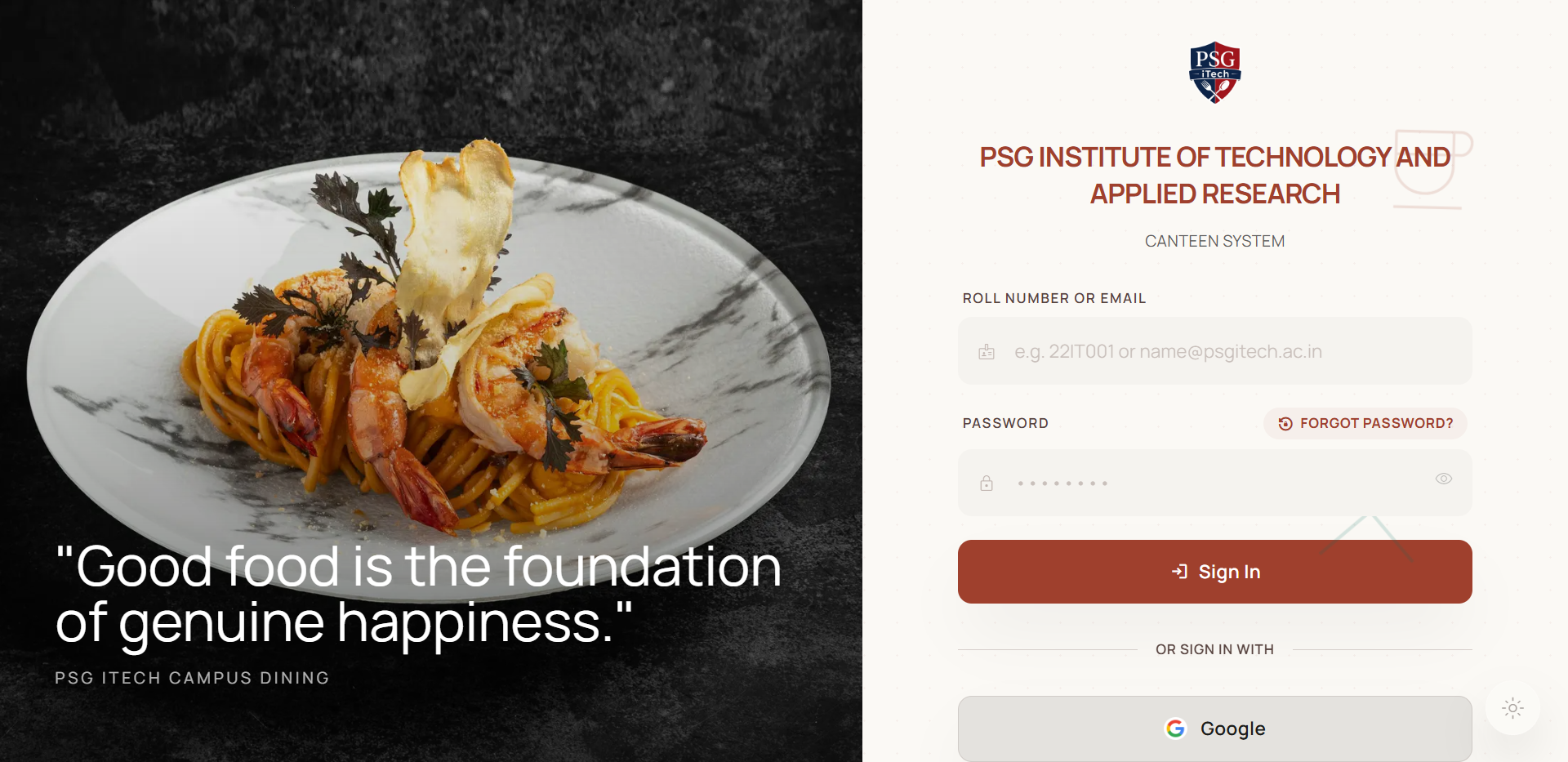
Sign in
1On the sign-in screen, enter your roll number, phone number, or
email and your password.
2Press Sign In. You'll land on your dashboard (the Home menu).
The sign-in screen, with the option to continue with Google.
Sign in with Google
Instead of a password, tap Continue with Google and choose your Google account. If it's your
first time, an account is created and linked automatically.
iTech Canteen
User Guide · v1.0
Section 02
Creating an account & signing in
Verify your email, reset a password, sign out
Verify your email
Email verification unlocks ordering. Until you verify, you can browse the menu and build a cart, but the
Confirm & Pay button stays disabled.
1After registering, open the Verify Your Email notice (also linked
from the cart and the dashboard banner).
2Check your inbox for the verification message and enter the code, or click the
link in the email.
3If it hasn't arrived, use Resend to get a fresh code.
Important — You must verify your email before you can place any order. Look for
the "Verify Email" banner on your dashboard if you're unsure.
Forgot your password
1On the sign-in screen choose Forgot Password.
2Enter your email; you'll be sent a reset code.
3Enter the code, then set and confirm a new password.
Logging out & session timeout
Use Logout / Sign Out from your Profile page (or the verify screen). For security, long
periods of inactivity end your session automatically and return you to the sign-in screen — just sign in again.
iTech Canteen
User Guide · v1.0
Section 03
Finding your way around
Navigation, theme, installing the app, offline mode
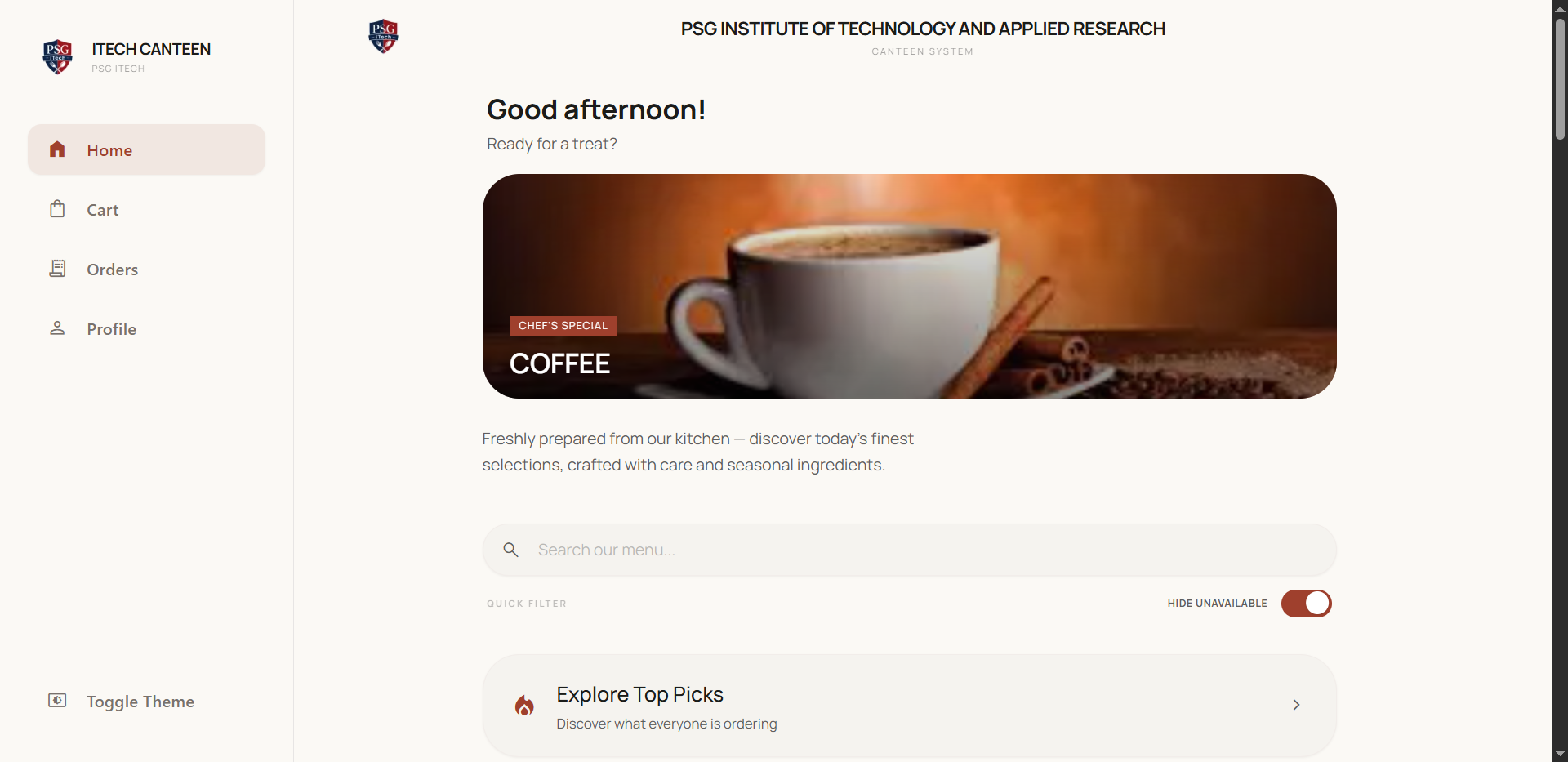
The main navigation
On a phone you'll see a floating bar at the bottom; on a computer the same links appear as a sidebar on the
left.
The main navigation — Home, Cart, Orders, Profile, Theme.
Icon
Where it takes you
Home
The menu / dashboard. Tapping Home while already there scrolls back to the top.
Cart
Your current cart, with a badge showing how many items are in it.
Orders
Your full order history and statuses.
Profile
Your account, order history, password, and links.
Theme
Switches the look between light, dark, and system.
Light, dark & system theme
Tap the Theme control to cycle between a light look, a dark look, and "system" (which follows
your device setting). Your choice is remembered.
Install it like an app (and use it offline)
iTech Canteen is a Progressive Web App, so you can add it to your home screen and it behaves like a native app.
On a phone: use your browser's "Add to Home Screen" option.
On a computer: use the install icon in your browser's address bar.
Tip — If you lose connection, the app shows a friendly offline screen and keeps
a cached copy of the menu so you can still look around until you're back online.
iTech Canteen
User Guide · v1.0
Section 04
Browsing the menu (Home)
Find food quickly
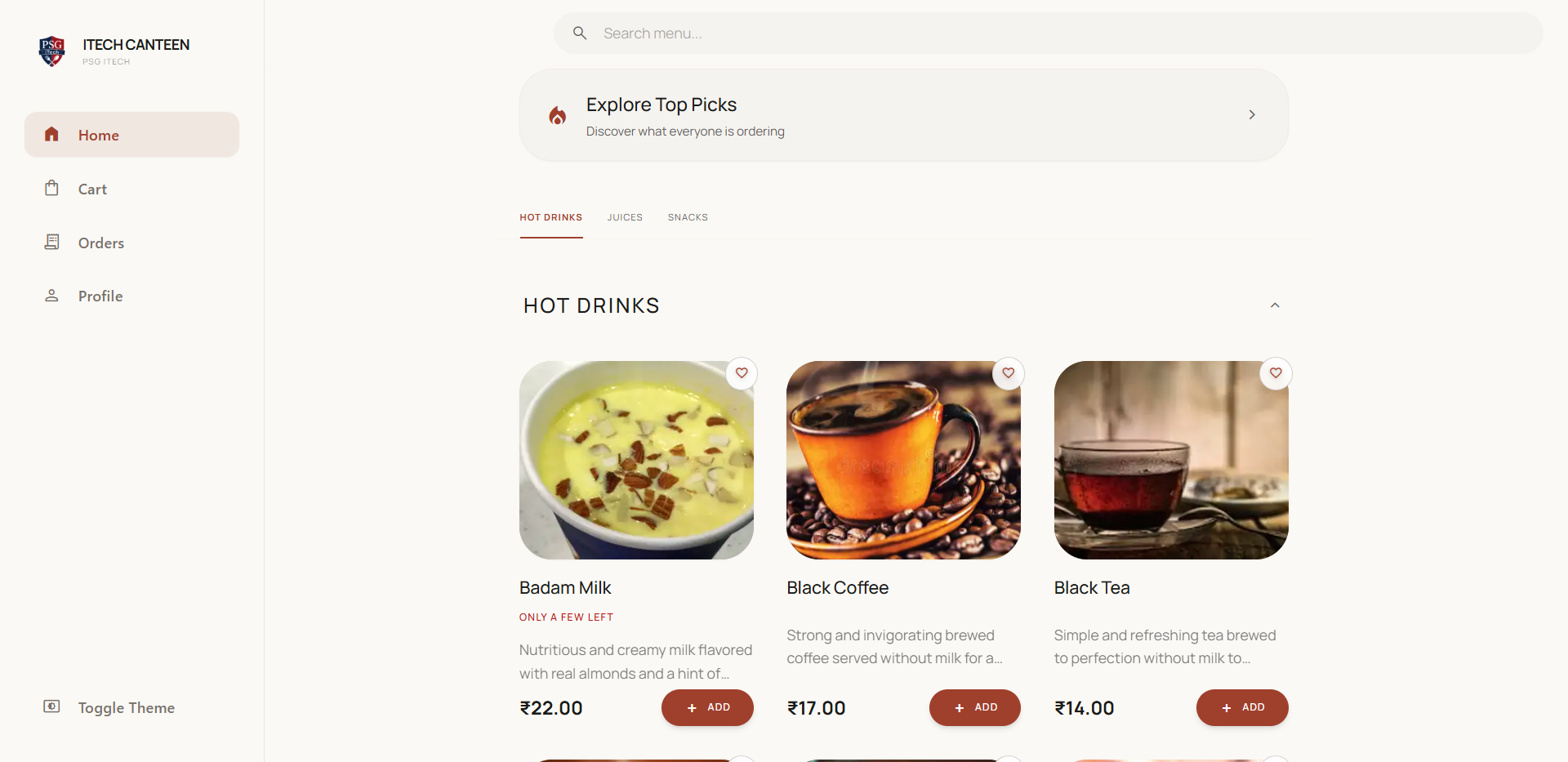
Your dashboard is the heart of the app — it shows what's available right now, your specials,
favourites, wallet, and recent activity.
The Home menu — Today's Special, category tabs, and stock labels.
Menus that change through the day
The canteen serves different items at different times. The menu automatically shows the categories available
for the current time of day. Outside serving hours, items appear greyed-out as "off hours" so you know when to
come back.
Today's Special
A large hero card at the top highlights the day's featured dish (set by the canteen). If none is set, the app
shows a popular pick instead.
Search & category tabs
Search — type a dish name to jump straight to it.
Category tabs — tap a category (e.g. snacks, beverages) to scroll to that section.
Reading stock labels
Each item shows how much is left so nothing's a surprise at the counter:
Label
Meaning
(no label)
Plenty in stock.
Only a few left
10 or fewer remaining.
Getting over soon
Just 1–2 remaining — order quickly.
Sold out
Out of stock; the card is greyed and can't be added.
In-stock items are always sorted to the top of each category so you see what you can actually order first.
Favourites
Tap the heart on any item to save it. Your saved dishes appear together in a Your
Favourites section on the dashboard, with available ones shown first.
Adding items to your cart
1Tap an item to view its details (photo, description, price).
2Use the + / − stepper to choose a quantity.
3Tap Add to Cart. The cart badge updates instantly.
Note — If an item shows a struck-through price, that's the regular cash price
and the lower price is what you pay in the app — the difference is shown as your savings.
iTech Canteen
User Guide · v1.0
Section 04
Browsing the menu (Home)
Dashboard shortcuts & your collection barcode
Handy cards on your dashboard
Your Wallet — your current balance, with a shortcut to top up.
Group Cart — jump into ordering together (see section 7).
Recent Orders — quick access to your latest orders and their status.
Your Experience Wrapped — a banner into your personal year-in-review (see section 12).
Dashboard cards — Wallet, Group Cart, Recent Orders, and Wrapped.
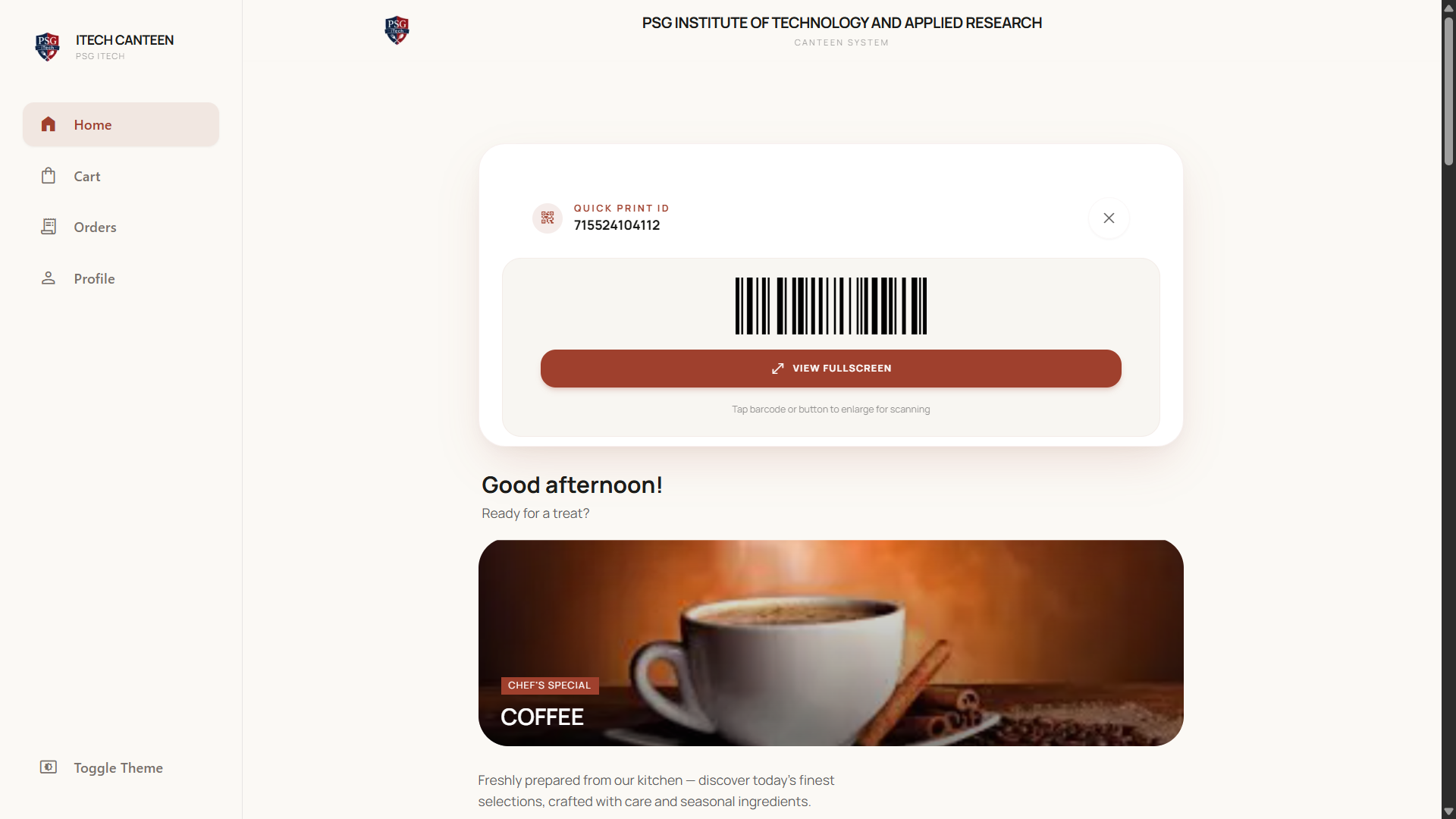
Your collection barcode
When you have an order that's paid but not yet collected, a barcode appears on your dashboard.
Tap it to expand — or open it full-screen — and show it to the cashier to collect your food. The barcode uses
your roll number (or phone number for guest accounts) so the counter can find your order instantly.
Your collection barcode, shown at the counter to collect food.
iTech Canteen
User Guide · v1.0
Section 05
Top Picks
Trending items
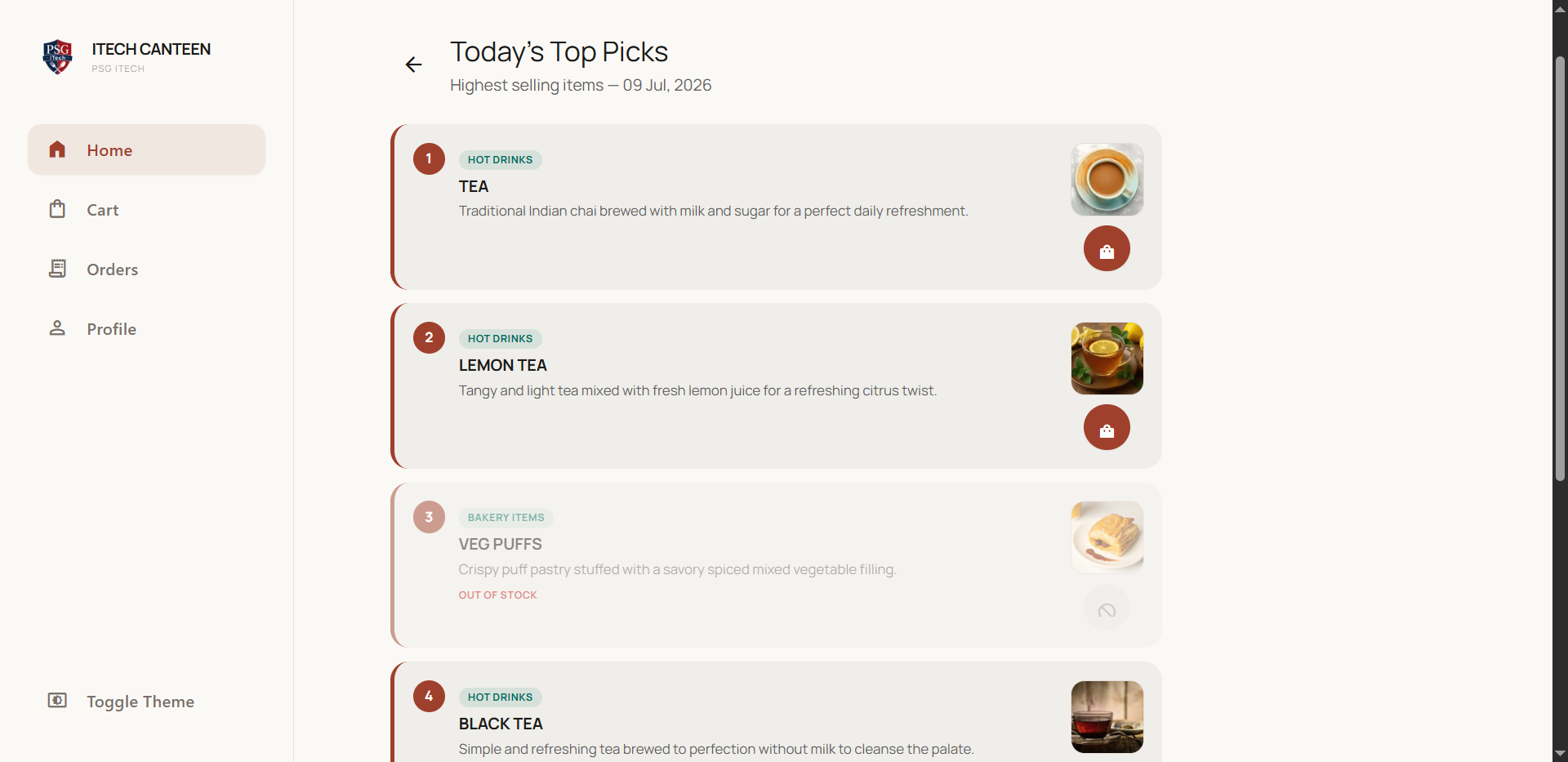
The Top Picks page highlights what everyone's ordering. It shows Today's Top
Picks once enough orders have been placed for the day, and falls back to Global
Trending (all-time favourites) early in the day. It's a quick way to decide when you're not sure what
to get.
Top Picks — today's trending and all-time favourite items.
iTech Canteen
User Guide · v1.0
Section 06
Your cart & checkout
Editing, payment options, savings
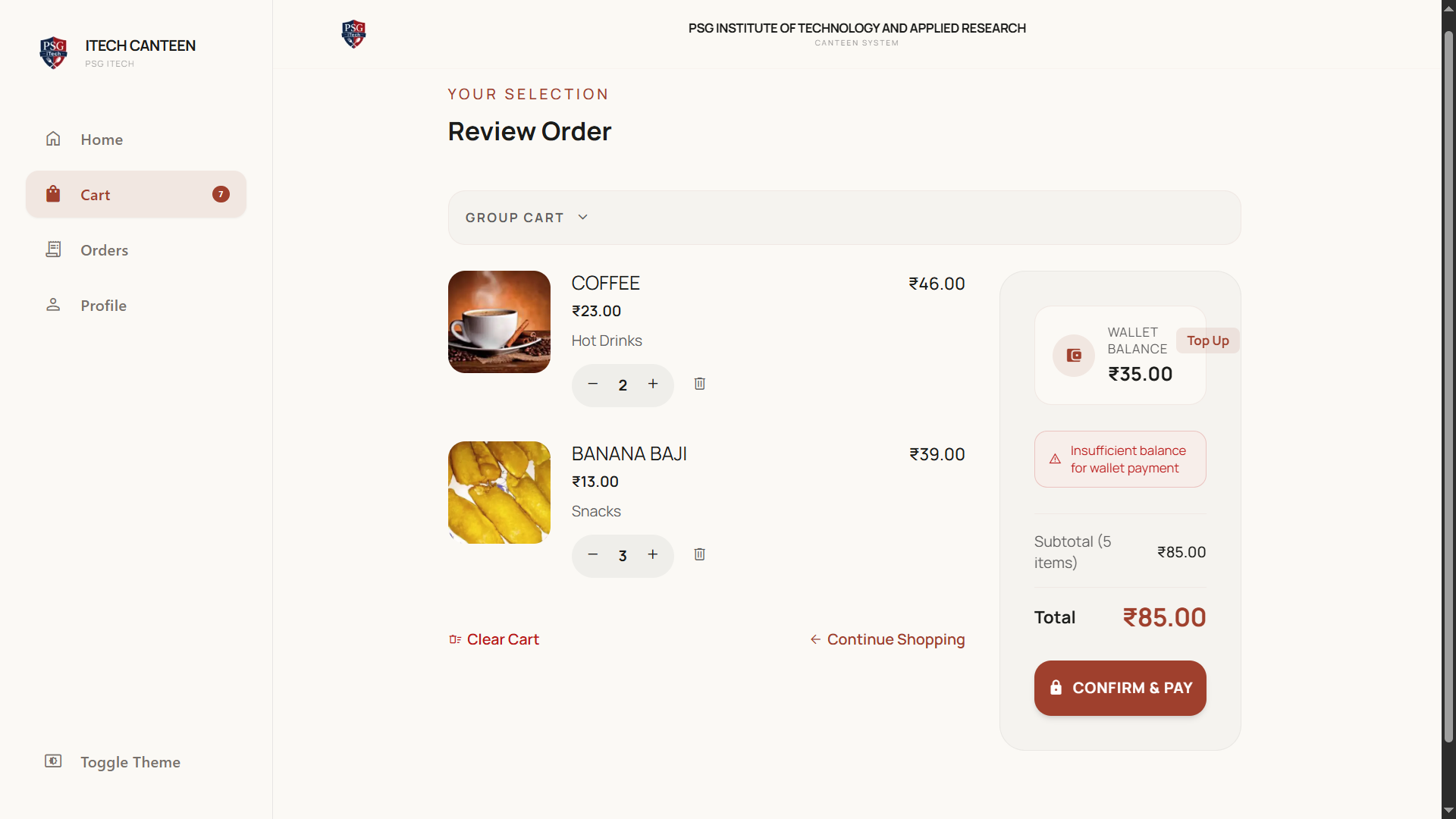
Reviewing your cart
Open Cart to see everything you've added. For each item you can:
Change the quantity with the + / − stepper (limited to available stock).
Remove a single item, or Clear Cart to empty it.
Tap Continue Shopping to head back to the menu.
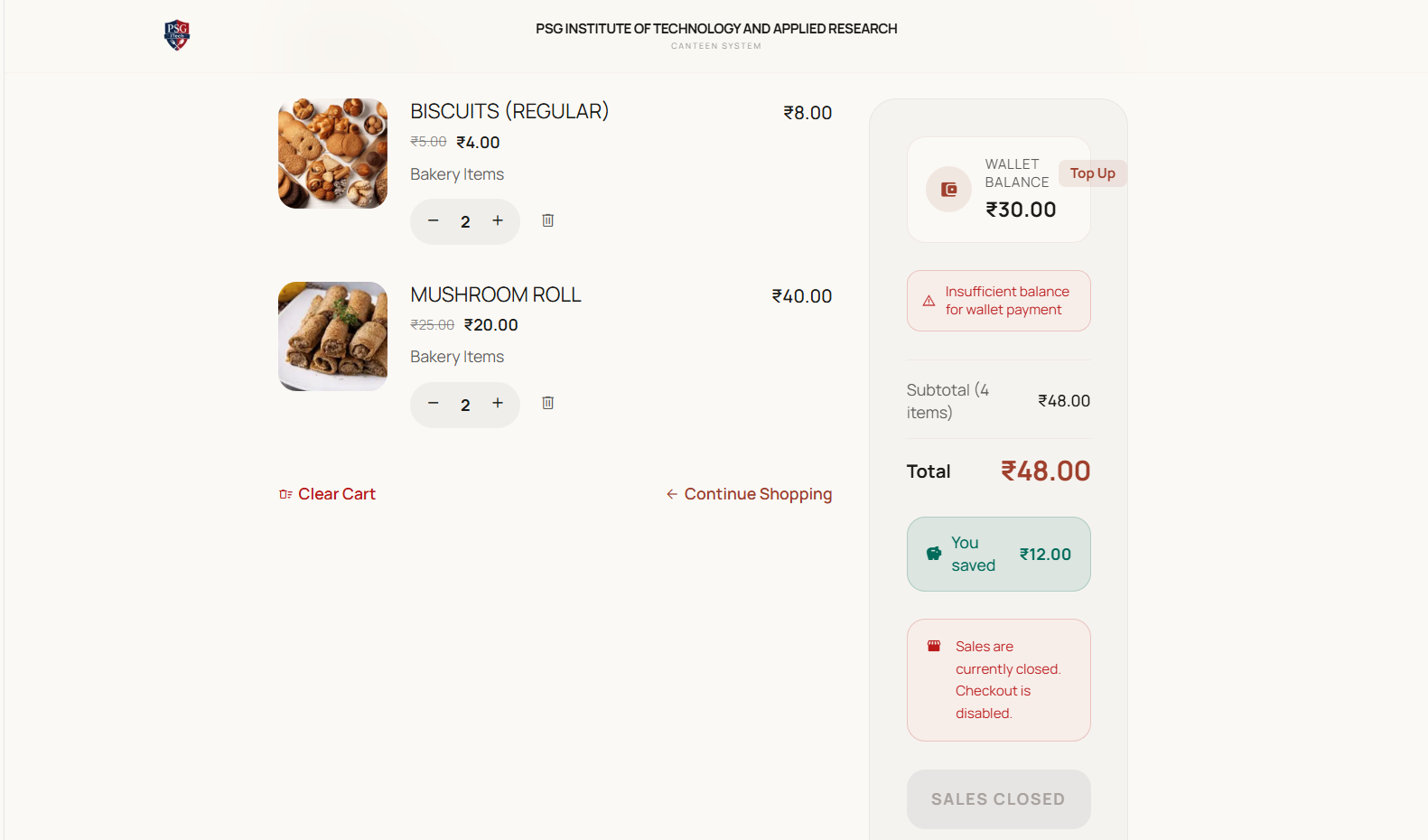
The summary on the right shows your item count, subtotal, total, and any savings versus the
cash price.
Your cart, with item quantity steppers and the order summary.
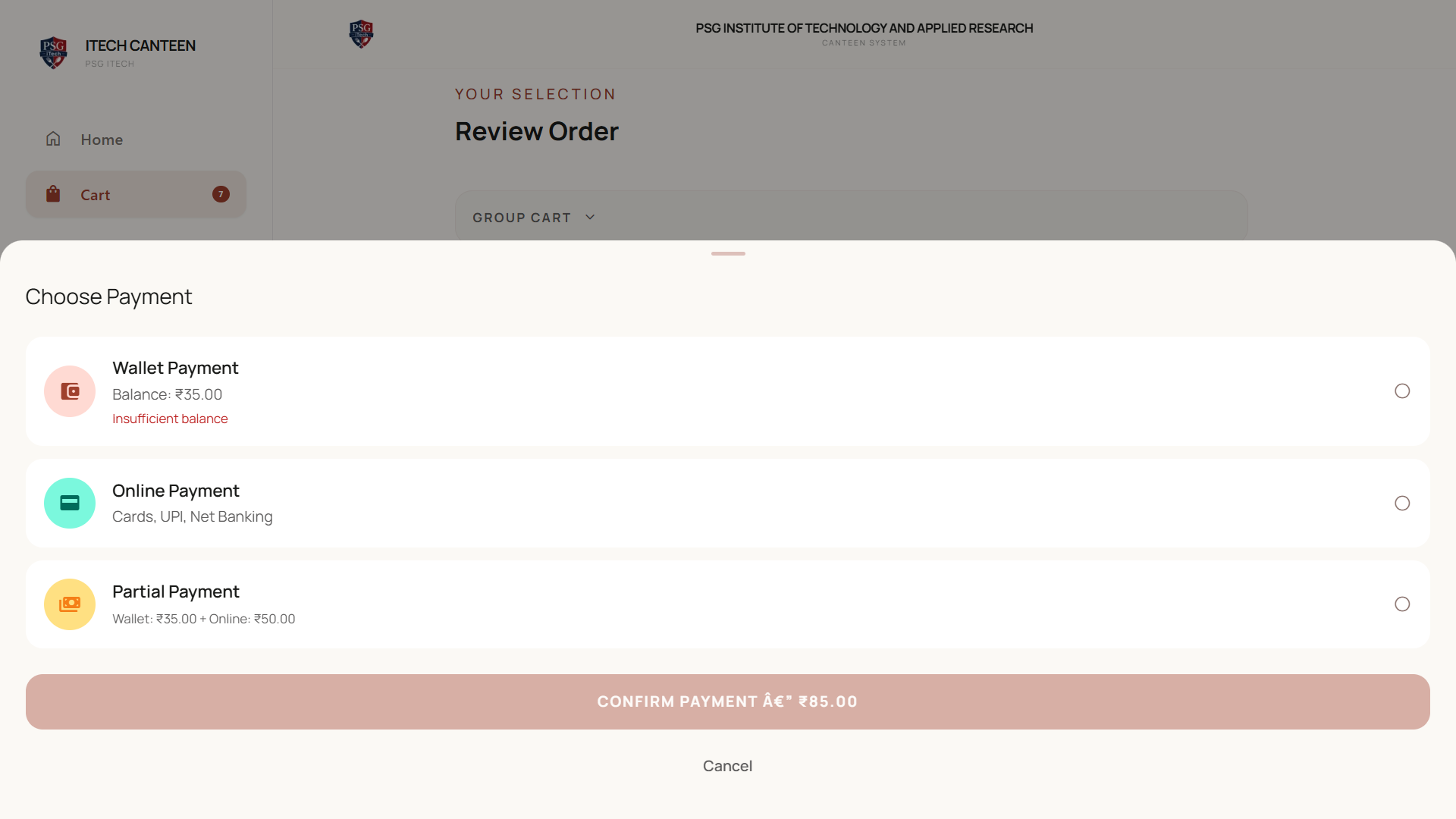
Choosing how to pay
Tap Confirm & Pay to open the payment sheet. You'll see up to three options:
Option
How it works
Wallet Payment
Pays instantly from your wallet balance. Disabled if your balance is too low.
Online Payment
Pay by UPI, card, or net-banking through the secure Razorpay gateway.
Partial Payment
Appears when your wallet has some money but not enough — it uses your full wallet balance and charges
the rest online.
The Confirm & Pay sheet — Wallet, Online, and Partial payment options.
1Select a payment option.
2Confirm the amount shown.
3For online/partial payments, complete the payment in the Razorpay window.
4You'll land on an Order Confirmed screen with your receipt.
iTech Canteen
User Guide · v1.0
Section 06
Your cart & checkout
When checkout is unavailable
When checkout is unavailable
Important — Checkout can be temporarily blocked for a few reasons — the button
and a message will tell you which:
Unverified — verify your email first (section 2).
Sales Closed — the canteen hasn't opened online sales yet today.
Emergency Stop — staff have paused all ordering temporarily.
An example of checkout being temporarily blocked, with the reason shown.
iTech Canteen
User Guide · v1.0
Section 07
Group carts — order together
Split by join code
Group carts let several people add items to one shared cart so a single person can pay the whole bill — perfect
for a table of friends or a team snack run.
Start or join a group
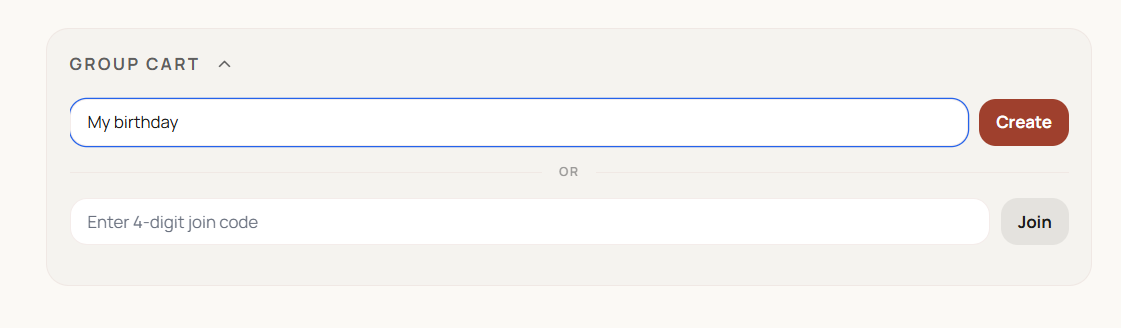
You can manage groups from the panel at the top of your Cart, or the dedicated Group
Carts page (Create New Group · Join Existing Group).
Create a group — give it a name and you'll get a 4-digit join code to
share. Anything already in your cart moves into the group.
Join a group — enter the 4-digit code someone shared with you.
A group cart — join code and shared items from all members.
Note — You can only be in one group at a time. Joining or creating a group
clears your personal cart (you'll be asked to confirm first).
How ordering works in a group
Everyone adds their own items; the shared cart updates live for all members.
Roles: the creator owns the group; everyone else is a member.
Any one in the group can pay — checkout charges the entire group total to them.
While one person is in the payment gateway, checkout is locked for the others.
Leaving & deleting
Members can Leave Group at any time (their items are removed).
The creator can Delete Group for everyone — members are notified that the
group closed.
When the group order is paid, everyone gets a success notification and their cart resets.
iTech Canteen
User Guide · v1.0
Section 08
Your digital wallet
Balance, top-ups, history
The wallet is your prepaid balance for fast, cashless ordering. Balances are stored securely (encrypted).
Top up your wallet
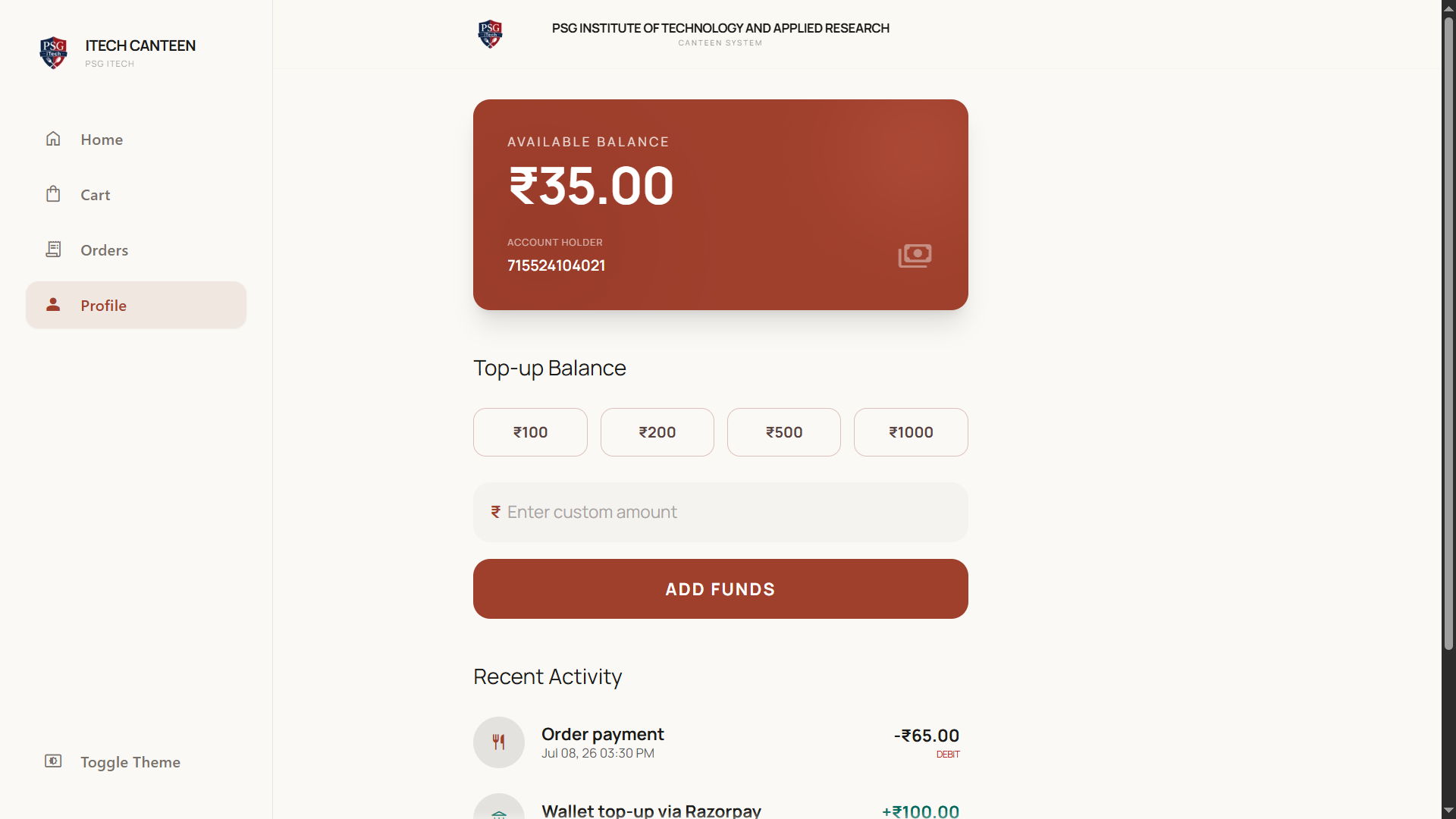
1Open Wallet (from the dashboard card or the cart's "Top Up"
shortcut).
2Tap a quick amount — ₹100, ₹200, ₹500, ₹1000 — or type a custom amount.
3Tap Add Funds and complete payment in the Razorpay window.
4Your new balance appears at the top once payment succeeds.
Wallet balance and quick top-up amounts.
Tip — Cashiers can also add money to your wallet in person — just give them your
roll number, phone, or email. It appears in your history as a "Cashier Credit".
Transaction history
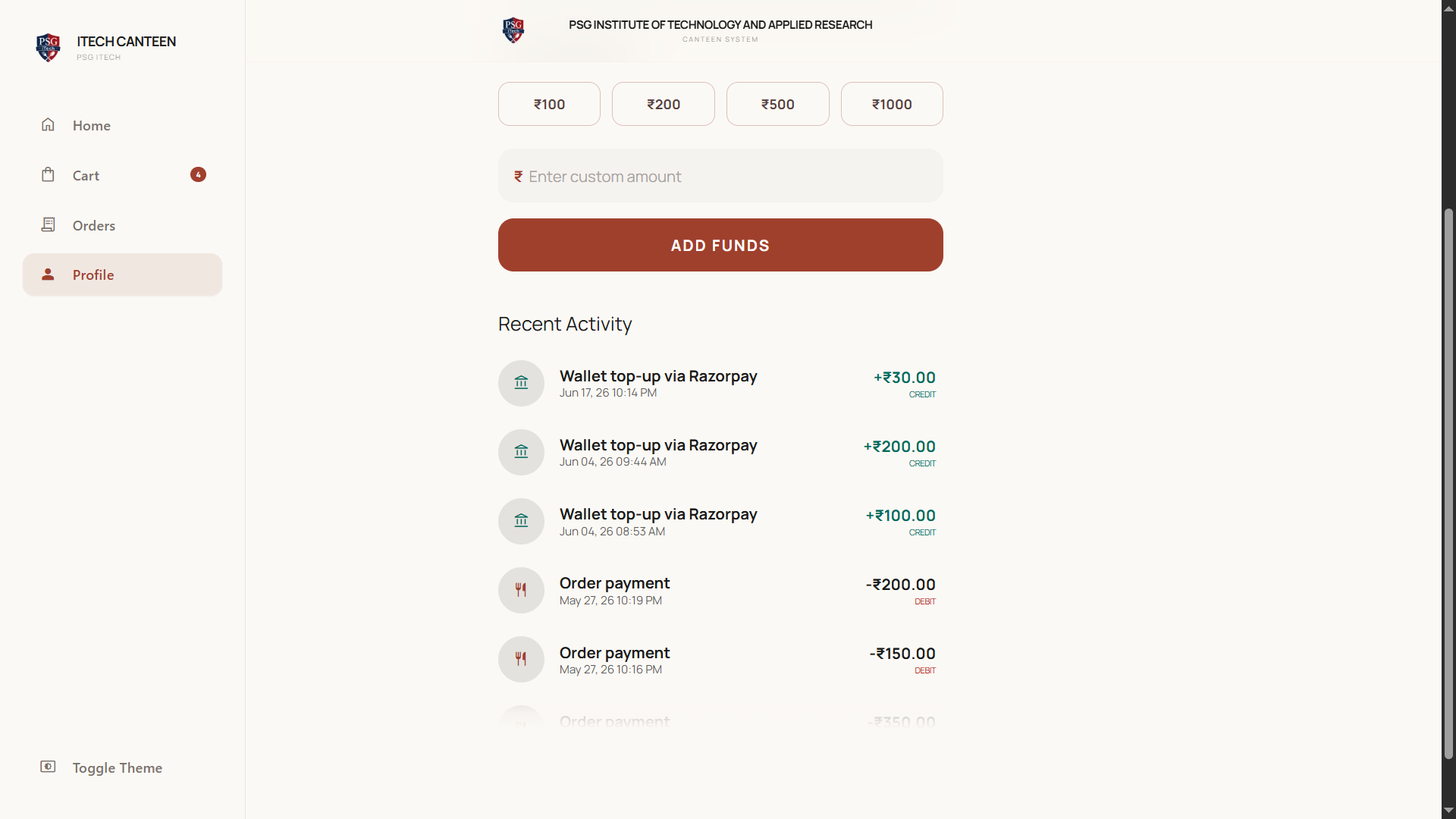
The Recent Activity list shows your latest top-ups and spends. Credits (money
in) show in green with a "+", and debits (money spent) show with a "−", each with a description
and date.
Recent Activity — credits and debits with descriptions and dates.
iTech Canteen
User Guide · v1.0
Section 09
Your orders
Tracking, receipts, collecting food
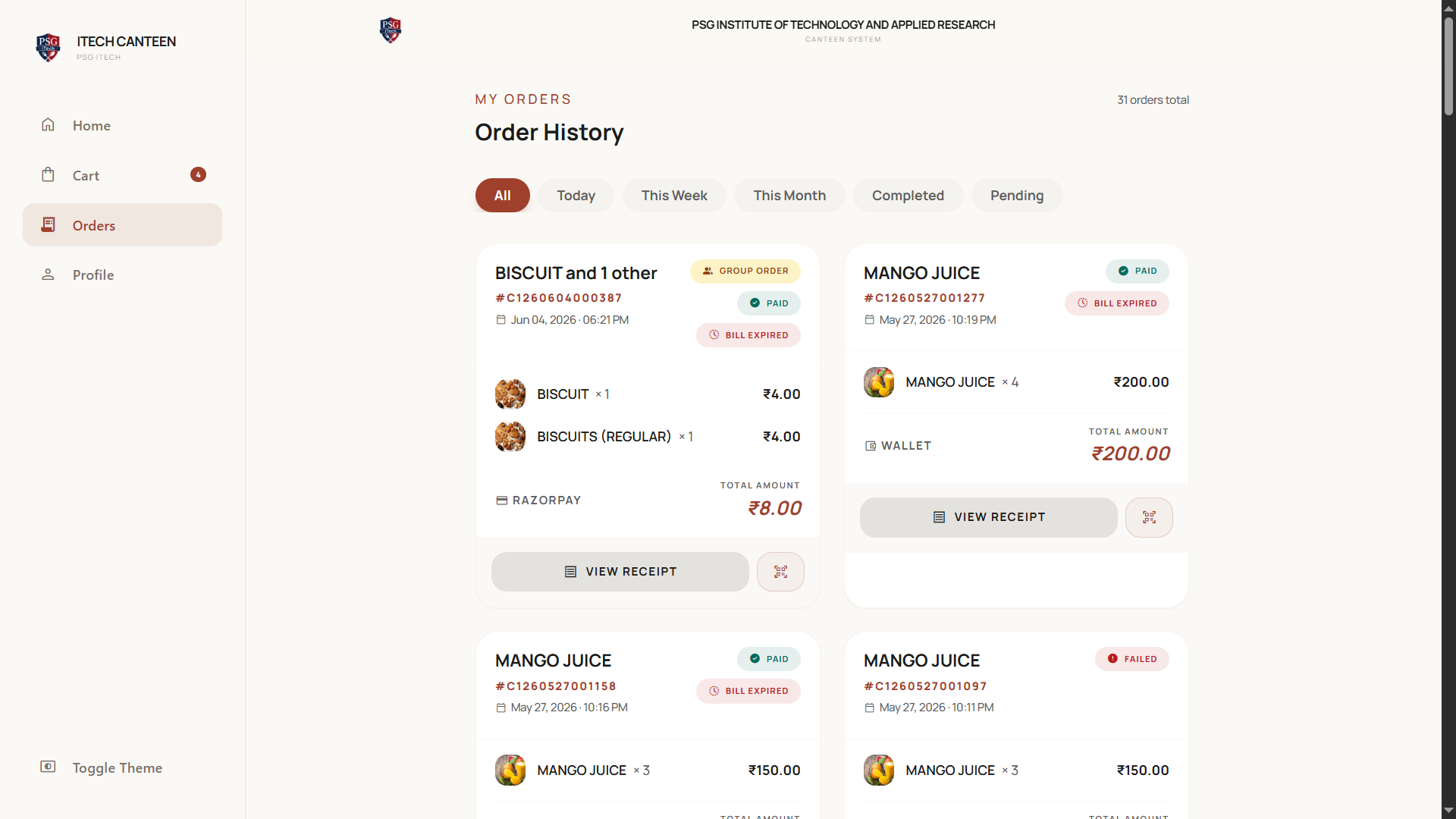
Order history & filters
The Orders page lists every order. Filter chips let you narrow the list:
AllTodayThis WeekThis MonthCompletedPending
Order history with filter chips and status badges.
Understanding order badges
Badge
Meaning
Paid
Payment completed.
Payment Pending
Payment not finished yet.
Refunded
The order was refunded.
Failed
Payment didn't go through.
Printed
Your bill was scanned/printed at the counter (food collected).
Bill Expired
A paid bill wasn't collected on the same day and can no longer be scanned.
Group Order
This order came from a group cart.
Each card also shows the payment method used (wallet, online, or partial).
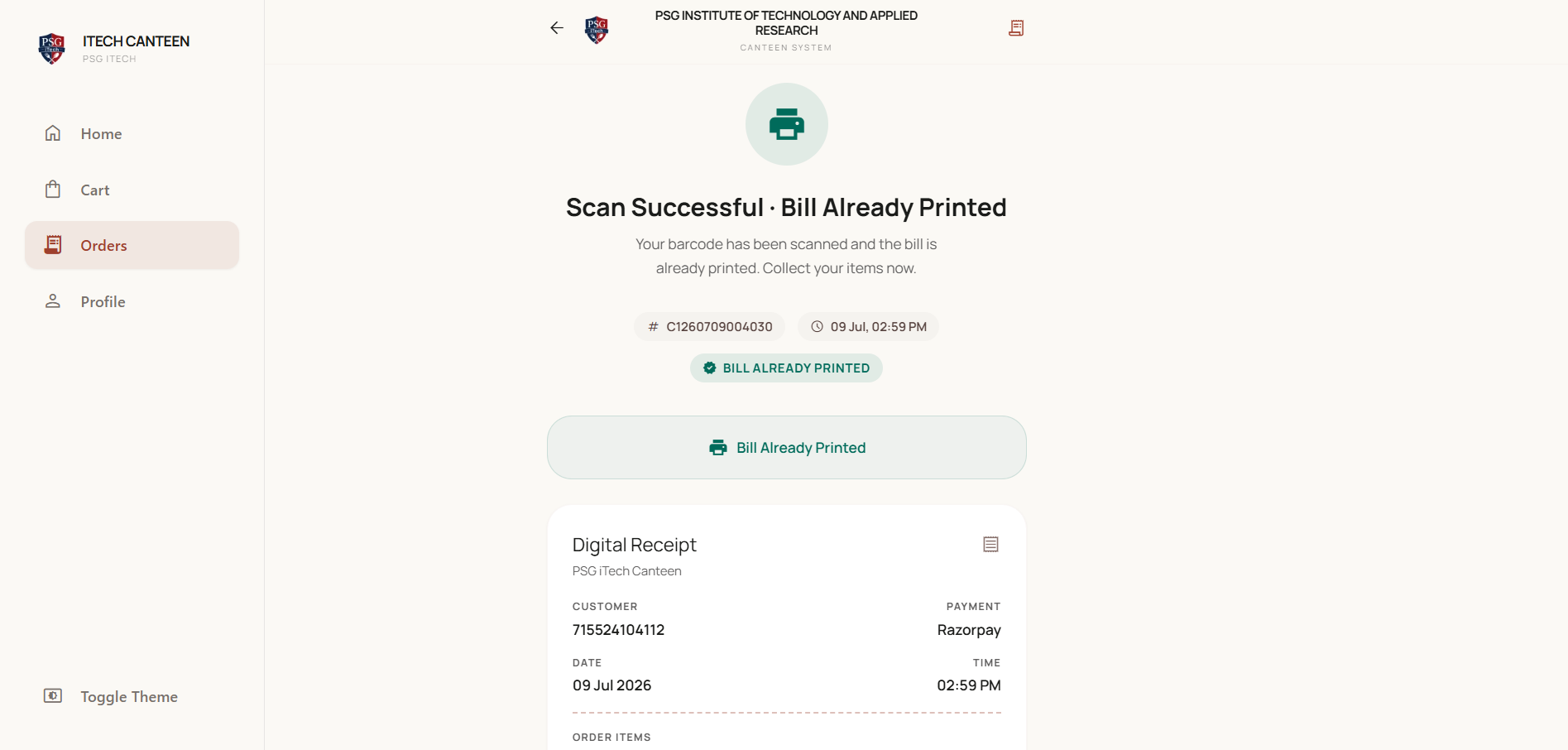
Collecting your food & receipts
After paying, the Order Confirmed screen shows a digital receipt and a
barcode.
Show the barcode (from the order screen or your dashboard) at the counter to collect.
Alternatively you can scan your ID card with which you registered to print the bills.
You can print or download the bill as a PDF for your records.
The Order Confirmed screen with digital receipt and barcode.
Important — Collect on the same day. A paid bill that isn't scanned that day is
marked Bill Expired.
iTech Canteen
User Guide · v1.0
Section 10
Bulk orders (for staff / authorised users)
Large / event orders
Bulk ordering is for large, event catering orders or for credit bills. Regular students order normally; staff
and
specially-authorised users get the bulk-order workflow.
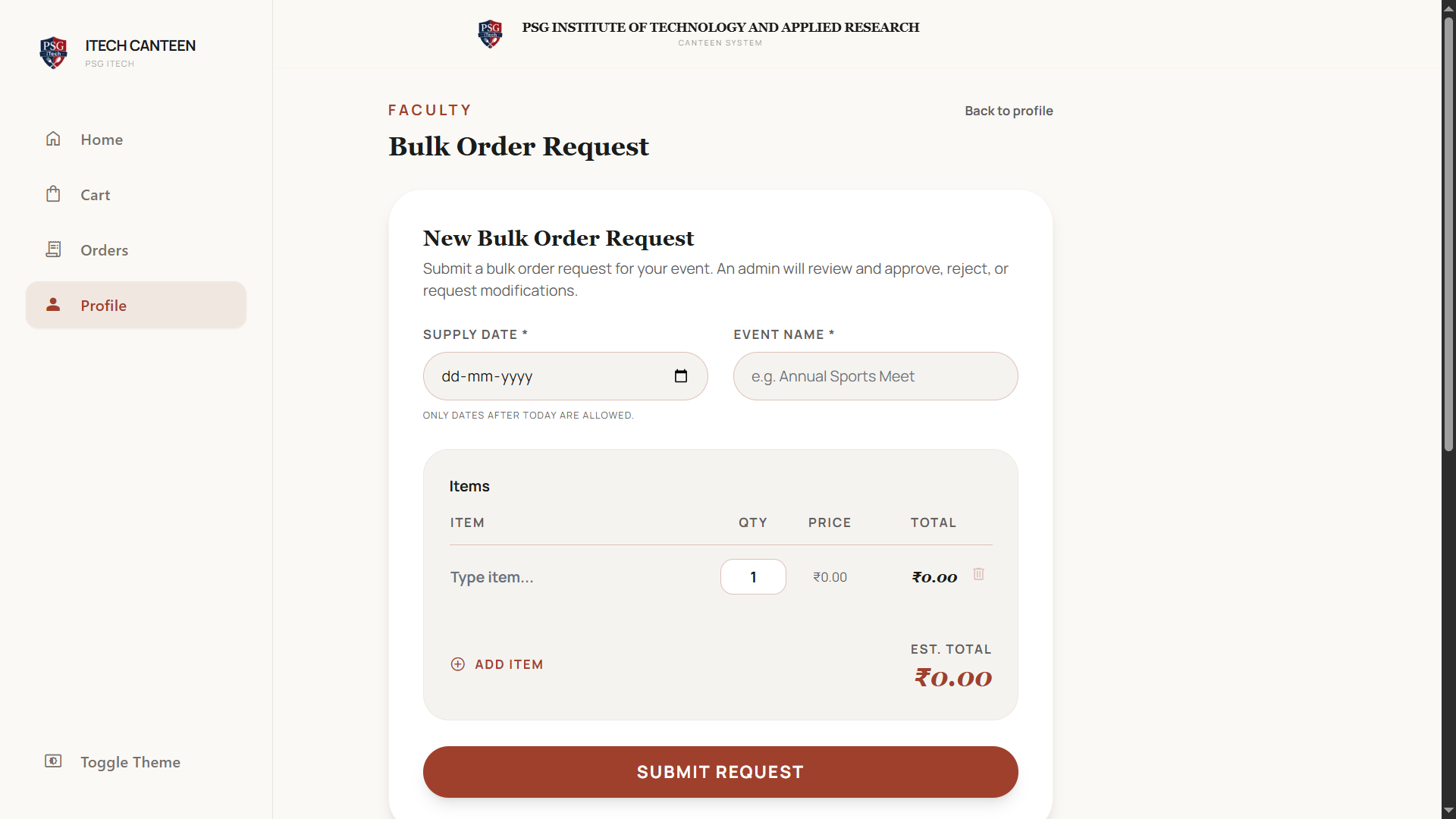
Placing a bulk request
1Open Bulk Order Request (from your profile/menu).
2Add the items and quantities you need for your event.
3Submit the request — it goes to an administrator for approval.
The Bulk Order Request form.
Tracking your requests
The Bulk Orders Dashboard lets you track each request's status and open it for full details.
Once approved and delivered, you can see the payment status — whether it's still on credit
(unpaid) or has been marked paid, along with the method (cash, cheque, online, or other), amount, date, and any
notes.
Note — Guest/external users need an administrator to grant bulk-order access
before the request form appears.
iTech Canteen
User Guide · v1.0
Section 11
Idea Board
Suggest & vote for items
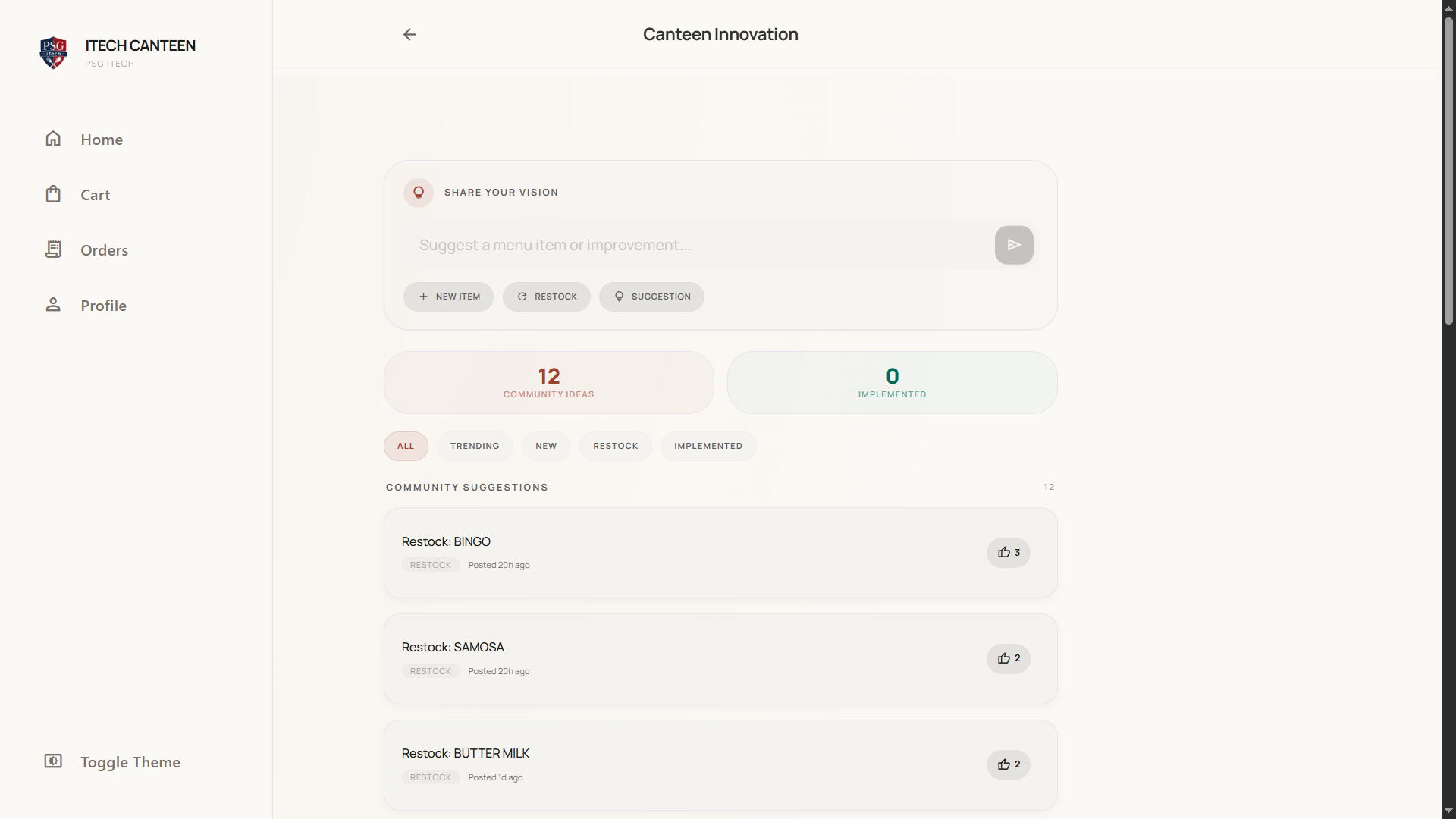
Tell the canteen what you'd like to see. The Idea Board is a shared wishlist where the community suggests and
votes on new items and improvements. Based on this board, the admins would be able to take the appropriate
action
Submit an idea — give it a title and (optionally) a description, then Submit.
Upvote ideas you like — one vote per idea. Popular ideas rise to the top.
Community Suggestions shows open ideas; the Implementation Board shows
what's being acted on.
The Idea Board — community suggestions and upvotes.
Note — To keep things useful, you can post up to 3 ideas per
hour, and obvious spam or very short entries are filtered out automatically.
iTech Canteen
User Guide · v1.0
Section 12
Canteen Wrapped
Canteen Wrapped
Your year in review
Like a music app's year-in-review, Canteen Wrapped is a fun, personalised summary of your
canteen habits — how much you've ordered, your go-to dishes, and other highlights. Open it from the Your
Experience Wrapped banner on your dashboard. It is shown only for a certain time period at the end of
the year.
Canteen Wrapped — your personal year in review.
iTech Canteen
User Guide · v1.0
Section 13
Your profile
Details, password, history
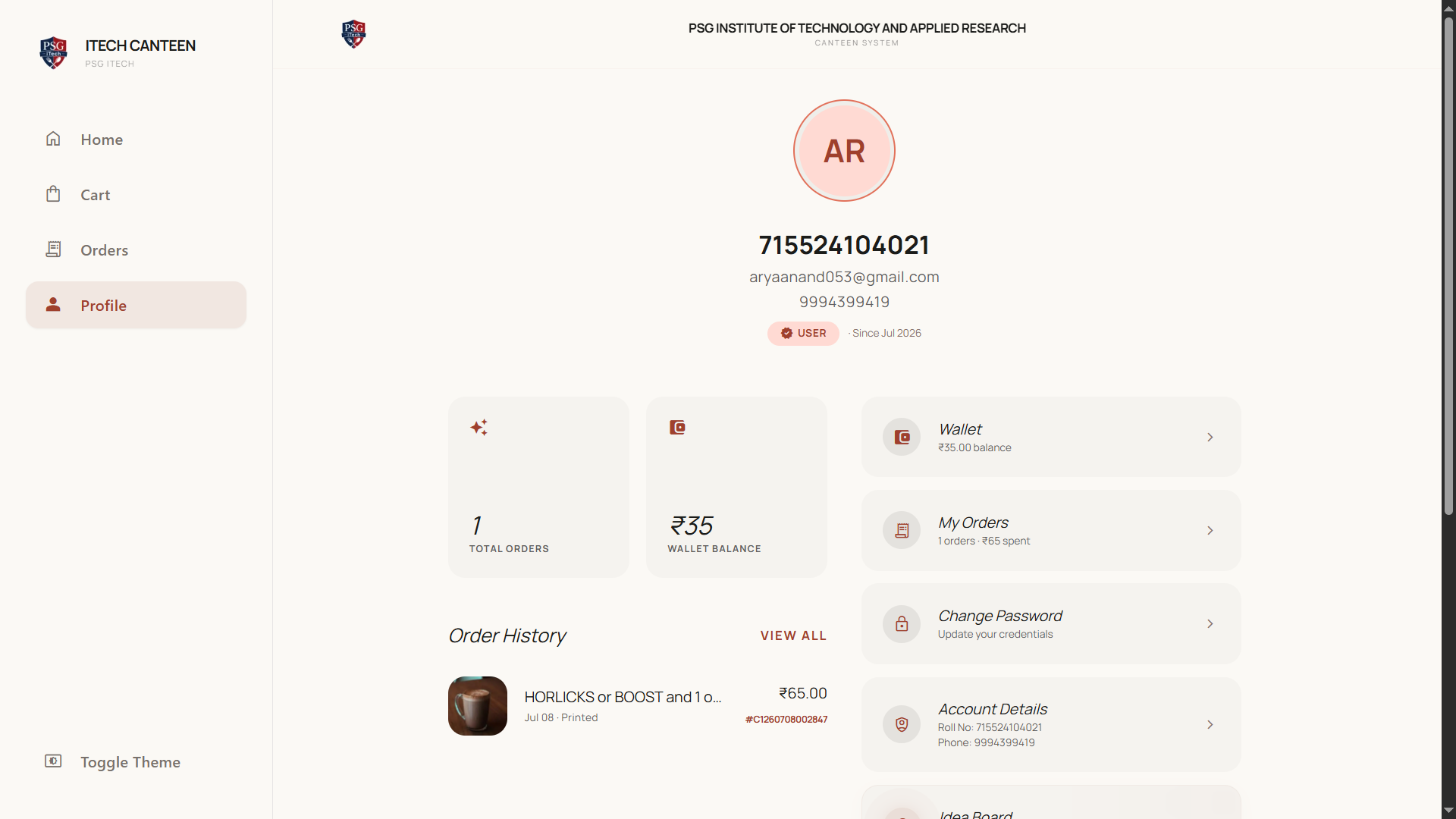
The Profile page is your account hub:
Order History — a snapshot of your past orders.
Profile Details — view your account information.
Change Password — update your password securely.
Favourites — your saved dishes.
Shortcuts to your Wallet and (if eligible) Bulk Orders.
Logout — sign out of your account.
The Profile page — your account hub.
iTech Canteen
User Guide · v1.0
Section 14
Notifications & live updates
Stay in sync, automatically
The app stays in sync in real time. You'll see live changes without refreshing, including:
Cart and group-cart updates as members add items.
Stock counts changing as items sell out.
Order status and payment confirmations.
Group notifications — e.g. "your group order was paid" or "the group was deleted".
iTech Canteen
User Guide · v1.0
Section 15
Help, terms & the team
Support & policies
Terms of Service and Privacy Policy are linked in the app footer.
The Creators page credits the people who built iTech Canteen.
If something isn't working, try refreshing, check your connection, and make sure your email is verified for
ordering. For account or payment issues, contact the canteen staff.
Tip — Quick recap: verify your email → top up your wallet (or use online
payment) → add items → Confirm & Pay → show your barcode at the counter. That's the whole loop.
iTech Canteen — User Guide · PSG Institute of Technology and Applied Research. This manual describes features
available to student and staff accounts.